
NEW: Please subscribe to my Substack/newsletter at the bottom of the page. Thanks!
Read Aloud
This page provides instructions to activate and use the text-to-speech capabilities of the Microsoft Edge browser to read these pages aloud.
Please Note: this function does a terrible job of pronouncing Hebrew and Greek terms that are transliterated into English and does not support Hebrew or Greet text at all. However, for most of the text it will provide a pleasant read-along experience.
How To Use The Feature
To activate the reader, use the keyboard combination Crtl+Shift+U, then click anywhere on the page you want it to start reading, or use the following browser menu function.
1. Open the desired page in the Edge browser.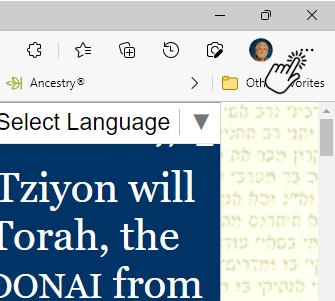
2. Find the Edge menu by clicking or tapping on the three-dot icon in the top-right corner of your browser window.
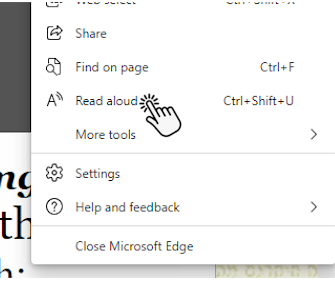 3. Near the bottom of the
drop-down menu, click or tap on “Read aloud.” The reader will begin reading the text aloud. In the
“Voice options” at the right end of the reader bar, you can select
the voice and reading speed you prefer.
3. Near the bottom of the
drop-down menu, click or tap on “Read aloud.” The reader will begin reading the text aloud. In the
“Voice options” at the right end of the reader bar, you can select
the voice and reading speed you prefer.
4. To start reading at a different point on the page, simply tap or click on the first word you want to hear.
5. If the reader stops, simply restart using Ctrl+Shift+U or click on the play button on the reader bar at the top of the page.
|
 |
Subscribe to my Substack/newsletter |

ANXIOUSLY WATCHING FOR MASHIACH’S RETURN,
SPEEDILY AND IN OUR DAY. MARANA, TA!


